 Tabovela

Open tabs are not a reading list. They slow your browser and your mind. A read-later tool lets you close a page without losing it — but many require an account and a sync service. There is a simpler way.
One click to save
With Tabovela, click the toolbar icon on any page. The title and address are saved to your Read later list, with an optional note to remind you why. Then you close the tab.
Your list waits in the new tab
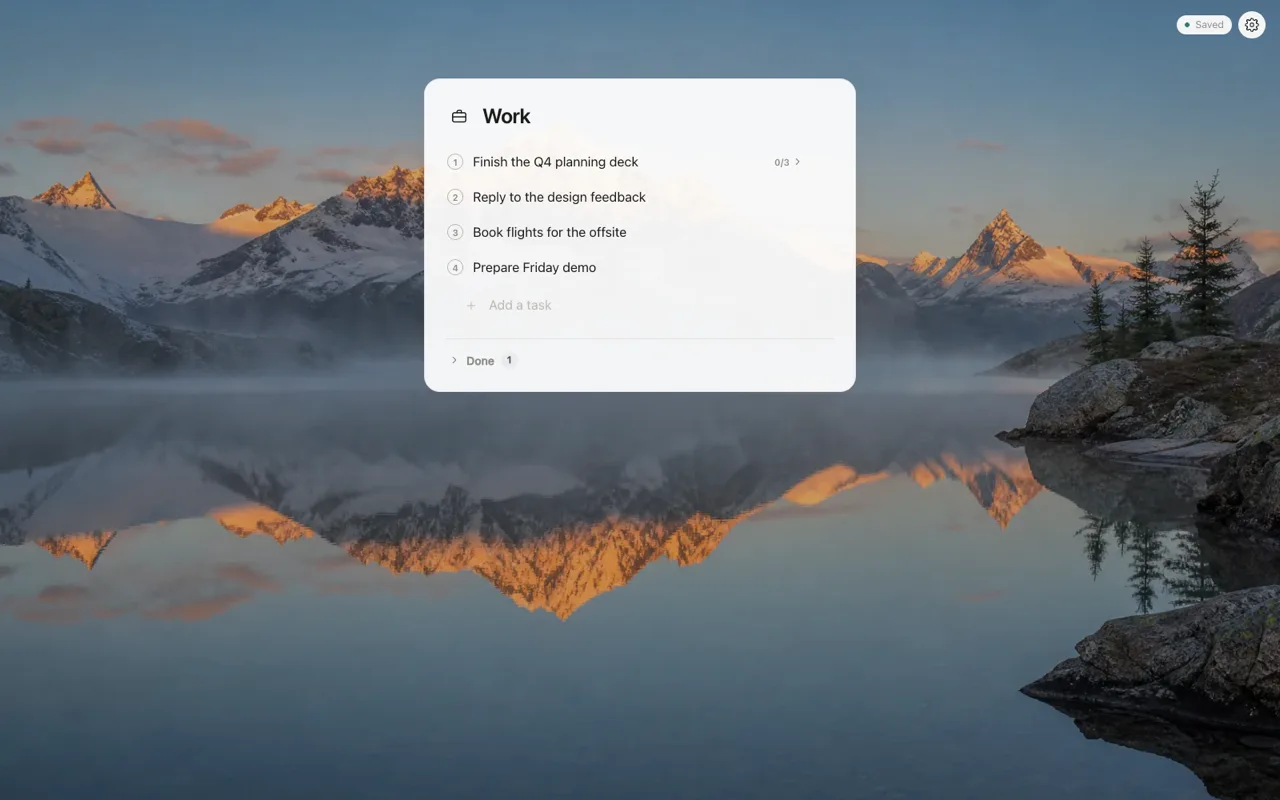
Open a new tab and the list is there, with site icons for quick recognition. Click an item to open it; remove it when done. Nothing to log in to.
Why no account matters
- Privacy: your reading list says a lot about you. It stays in Chrome on your computer.
- Speed: no sync, no loading, no sign-in screen.
- Simplicity: one list, not a library to manage.
Habits that keep it useful
- Save instead of keeping a tab open “just in case”.
- Add a note when the reason is not obvious.
- Pick a weekly slot to read, and clear the list.
The list only saves the page address and title, and it is included in your automatic backup, so it survives a reinstall. See the privacy policy for details.
Tabovela: a little space to get things done.
Add to Chrome — it’s freeKeep reading

Best Pomodoro timer Chrome extensions: 6 options compared
Marinara, Focus To-Do, Tomato Clock, Pomofocus, Focus Tomato and Tabovela compared: simple timers, timers with tasks, and a free timer in your new tab.

How to set up a minimalist new tab page in Chrome (in 2 minutes)
Chrome’s default new tab page is noisy. Here is how to replace it with a calm, minimalist one that shows only your next task — and how to keep it that way.